MCP Access
Use a Revenuealot MCP key to connect an MCP-compatible AI client and query store performance, product research, and operations data. Clients call tools through the remote MCP server, with access governed by your organization, plan, store, and team permissions.
MCP access is available on Starter and above. Each MCP client can only use tools allowed by your current plan and organization permissions.
What MCP Can Do
The MCP server exposes read-only tools for common operating questions:
- Store discovery across connected platforms
- Takealot keyword research, keyword reverse lookup, product research, store analytics, and returns risk
- Amazon store metrics, product analytics, products, orders, keyword reverse, and ads performance
- Makro store metrics and product analytics
- Shopify product data
- Supplier product data
Create and Manage MCP Keys
Open MCP Keys
Go to Dashboard → Settings → MCP Keys and check that the current workspace is the organization whose data you want to query.
Create a Key
Click Create key and enter a name that identifies the client or purpose, such as Codex or Operations Agent. An expiry date is required. New keys default to 180 days, and the latest allowed expiry is 180 days from today.
Copy the Key Once
Revenuealot shows the full key only once, immediately after creation. Copy it into your client’s credential settings or a secure secret store. The key list only shows a prefix; you cannot retrieve the full key again.
Manage Active Keys
You can edit the name or expiry of keys you created, disable keys temporarily, or delete them permanently. An expiry date is also required when editing, with a maximum of 180 days from today.
Organization admins can switch to the organization view to review and manage keys when permitted. Use the records button beside a key to review recent authentication and tool calls.
Connect an MCP Client
Use a client that supports remote MCP over Streamable HTTP and manual Bearer tokens.
<MCP_KEY> means the Revenuealot MCP key you created and copied in the previous section. When configuring a client, replace <MCP_KEY> with the full key value and do not keep the angle brackets.
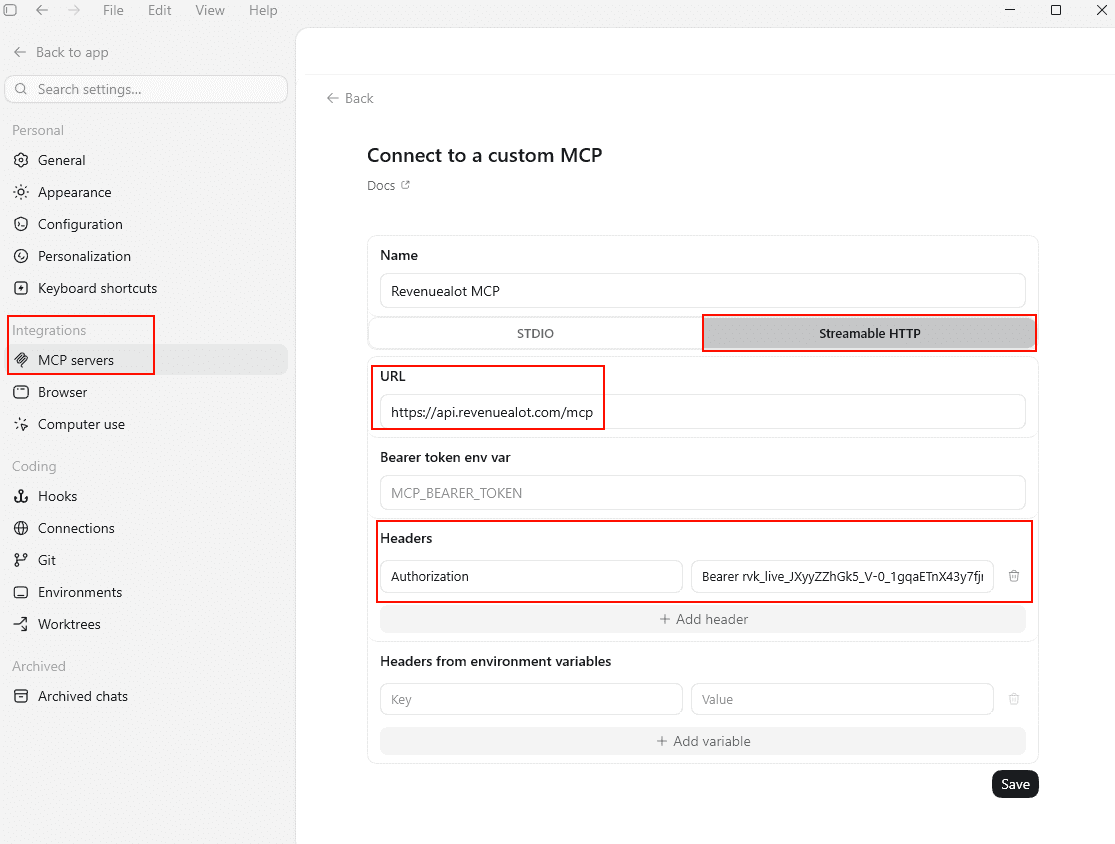
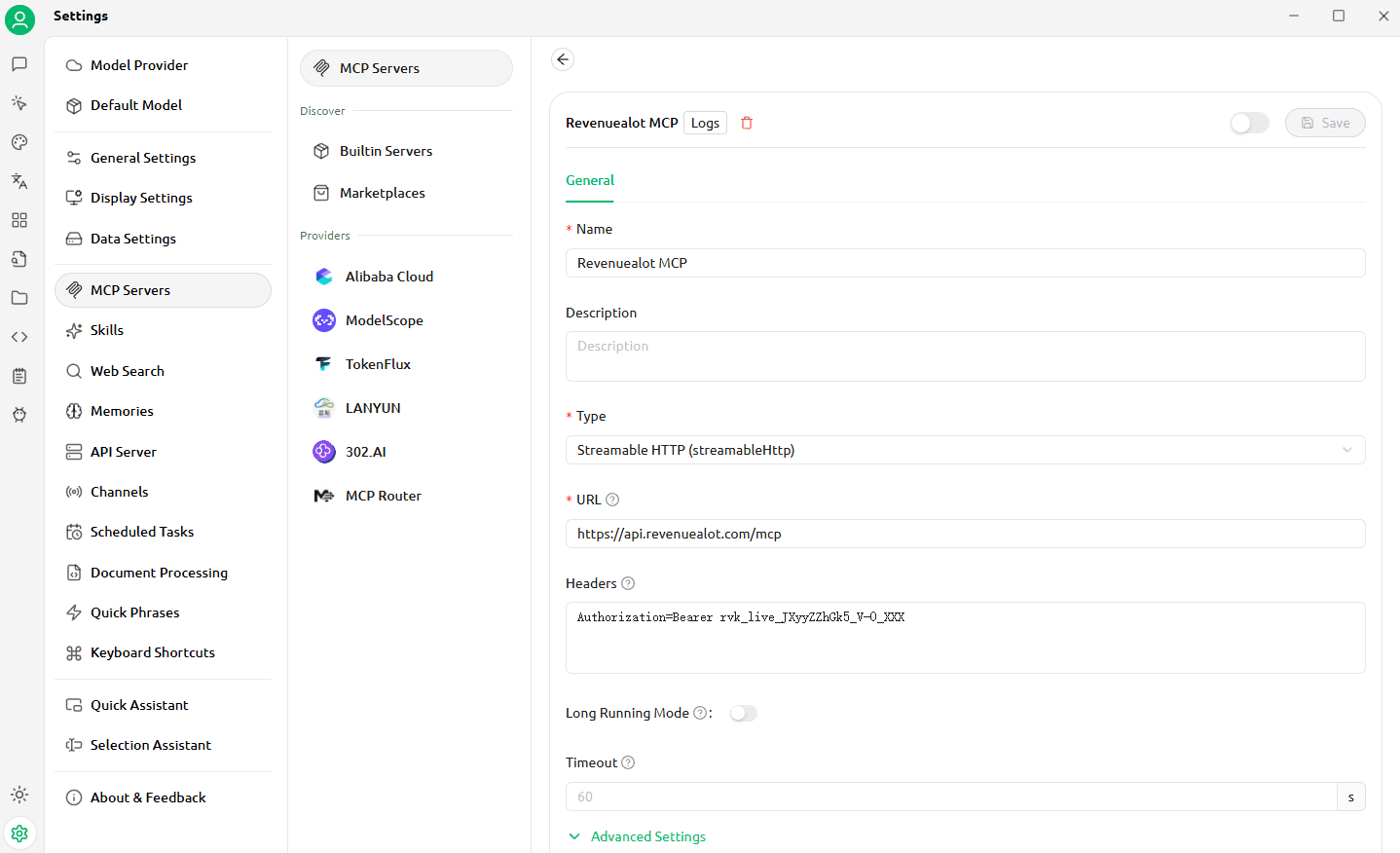
Open the Codex app, then go to Settings → MCP Servers → Add Server and add Revenuealot MCP. Choose Streamable HTTP as the type, set the URL to Copy, then add Copy in Headers with the value Copy.
Do not paste an MCP key into shared prompts, documents, code repositories, or screenshots. Treat it like an API secret.
Security Notes
- Create separate keys for separate clients or team workflows.
- Choose a shorter expiry for temporary assistants or trials, and replace the key in your client before it expires.
- Disable a key first if you want to pause access without losing the record.
- Delete a key if it may have been exposed. Deleted keys cannot be recovered.
- Team members should use their own keys instead of sharing one credential.
Troubleshooting
The client cannot connect
Confirm that the URL is https://api.revenuealot.com/mcp, the transport is Streamable HTTP, and the request includes Authorization: Bearer <MCP_KEY>.
The tool list is empty or incomplete
Check your current plan and team tool permissions. MCP tool availability follows the same access rules as Revenuealot.
A key stopped working
Check whether the key is disabled, deleted, expired, or no longer covered by your current plan.
You did not save the full key
The full key is only shown after creation. Create a new key, update your client configuration, then delete the old key if it is no longer needed.
Next Steps
- MCP Key Settings - Create and manage client access keys
- Store Connection - Connect platform stores before querying data
- Amazon Overview - Understand Amazon data prerequisites